A. Create a project at Google API Console
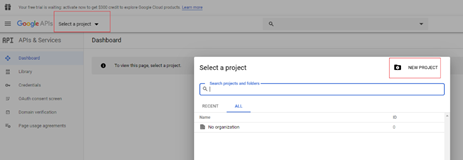
- Go to https://console.developers.google.com/
- Login with the admin user of the domain(admin@example.com)
- Select a project and create a new project
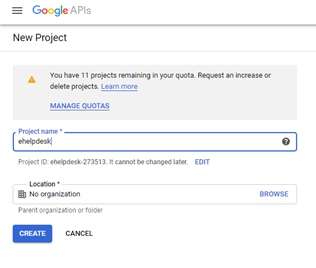
4. Enter project name and select Create button
B. Enable Gmail API
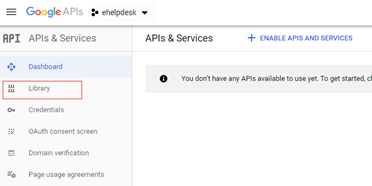
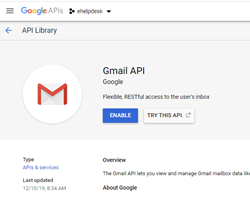
- Click Library and search for Gmail
- Click Enable button
C. Credentials and authentication
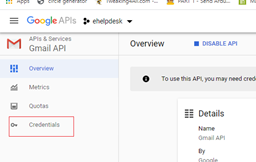
- Click Credentials
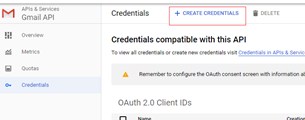
- Click Create Credentials button
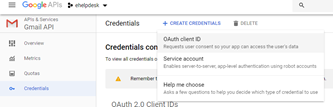
- Select Service Account
- Enter Service Account Name
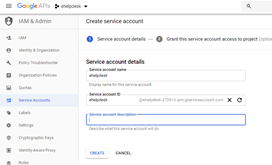
- Select Continue button
- Select Done button
- Select the Service Account.
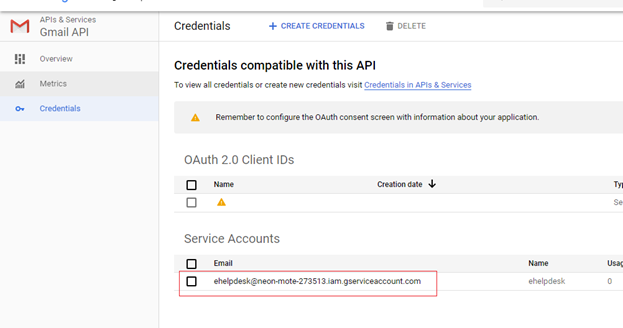
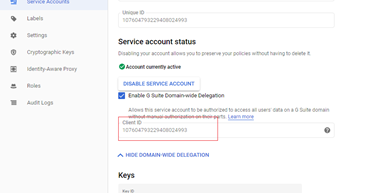
- Click Show Domain-Wide Delegation
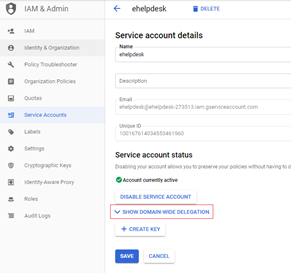
- Click Enable G Suite Domain-wide Delegation
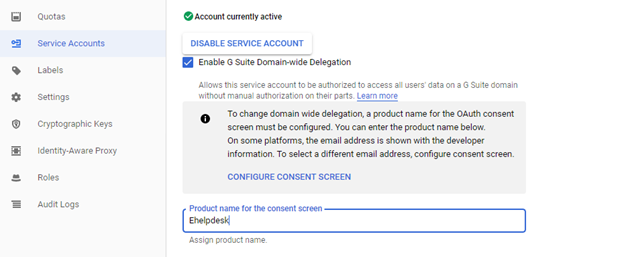
- Click Save button
- Click Create Key button and select P12
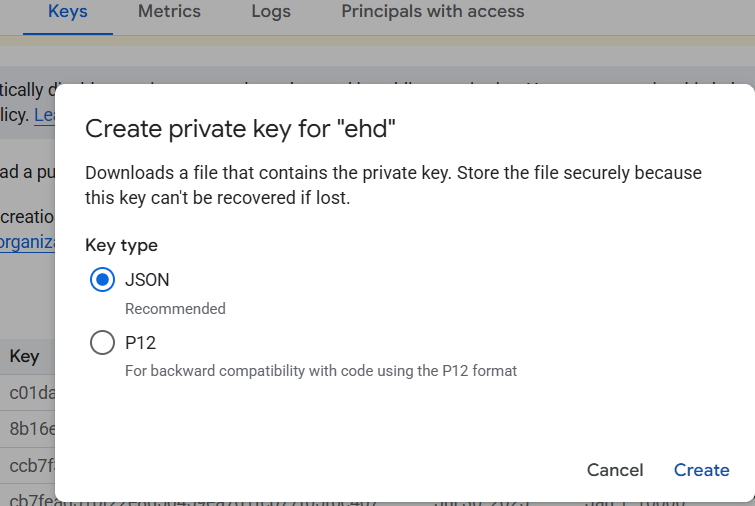
- Copy the Client ID
- Click Close
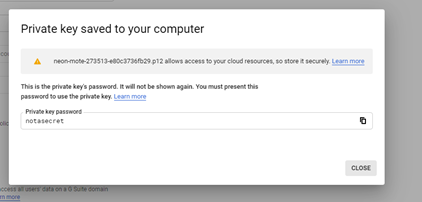
- Save the .p12 file for later use.
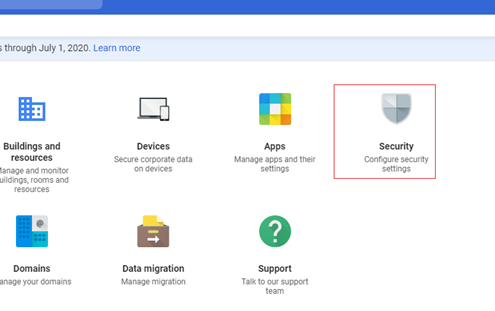
- Login to https://admin.google.com/ using your gsuite admin account
- Select Security
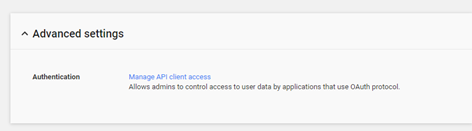
- Select Advance Settings -> Manage API client access
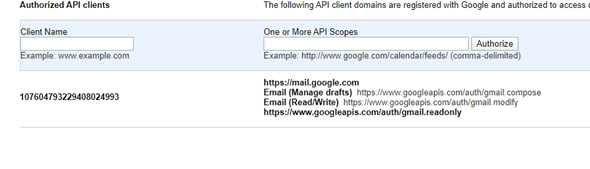
- Enter Client ID to Client Name and below for the values
https://mail.google.com, https://www.googleapis.com/auth/gmail.compose, https://www.googleapis.com/auth/gmail.modify, https://www.googleapis.com/auth/gmail.readonly
D. Outgoing Mail Setup
- Login to ehelpdesk and go to Mail
- Select Gmail Api and fill out the details
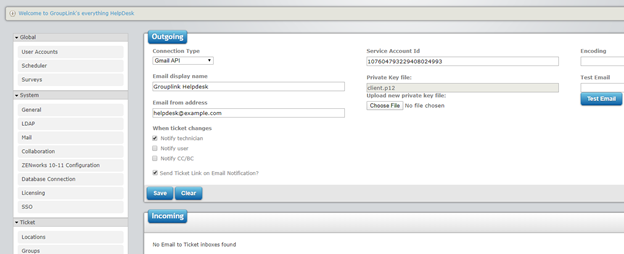
- Enter and email address in Test Email and click the Test Email button
E. Incoming Mail Setup
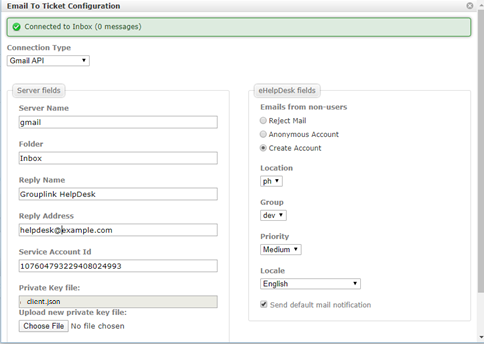
- Click New Inbox button and fill out the Email to ticket config
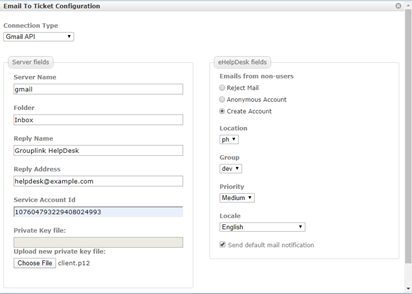
- Click Save Changes button
- Edit the Email To Ticket Configuration
- Click Test button