


Insert new tables with drag and drop simplicity.
Add, remove, cut, and paste rows and columns – this makes working with tables easy.
- Edit the page.
- Click in the right-hand column to position your cursor.
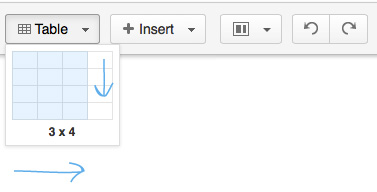
- Click Table in the editor toolbar. It looks like this:

- Using the table dropdown, select a table size by moving your mouse over the table diagram.
- Upon inserting the table on to the page, you will see a contextual table toolbar.

- Place your cursor in the first cell of the table and add a row below it.

- Place your cursor in any cell of the last column of the table and delete the column.

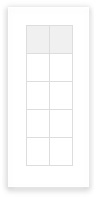
- Your table should look like this:
- Click Save.



0 Comments